Last week I gave an intro class on AI agents for some anesthesiologist friends. The post-class feedback was interesting: “permission prompts and auto mode” showed up near the top of two different lists. A lot of people voted it “most useful,” but a lot also voted it “didn’t understand.” That means it’s important, but the pacing of a single class just wasn’t enough to cover it. I’ll explain it all here in this post.
For those who haven’t set it up yet, you can read getting started with AI agents from scratch first, and come back when you’re done.
What is a permission prompt: raising its hand before making a move
The hardest thing to get used to the first time you ask Claude Code or Codex to organize a folder is that it keeps popping up prompts asking you, “Is this okay?”
This prompt is actually the most important safety design in the whole system: before an AI agent touches anything on your computer, it needs your nod of approval. The prompt usually has three parts:
- The command it wants to run: A line of terminal command, like
ls,mkdir, orrm - Its own plain-language explanation: The line or two below the command, explaining what it wants to do and why
- Your options: Approve this time, approve and don’t ask again, or reject
You don’t need to know terminal commands. You just need to understand that plain-language explanation and decide, “Does this make sense?” When you don’t understand, there are two tricks:
Two tricks for when you don’t understand what it’s trying to do
- Reply directly: “Explain what you are trying to do in a way a five-year-old would understand” (the acronym is ELI5, Explain Like I’m 5, and AI understands it)
- Copy that line of command and paste it into a web-based AI, asking, “What does this command do? Is there any risk?”
Four modes: press Shift+Tab to switch
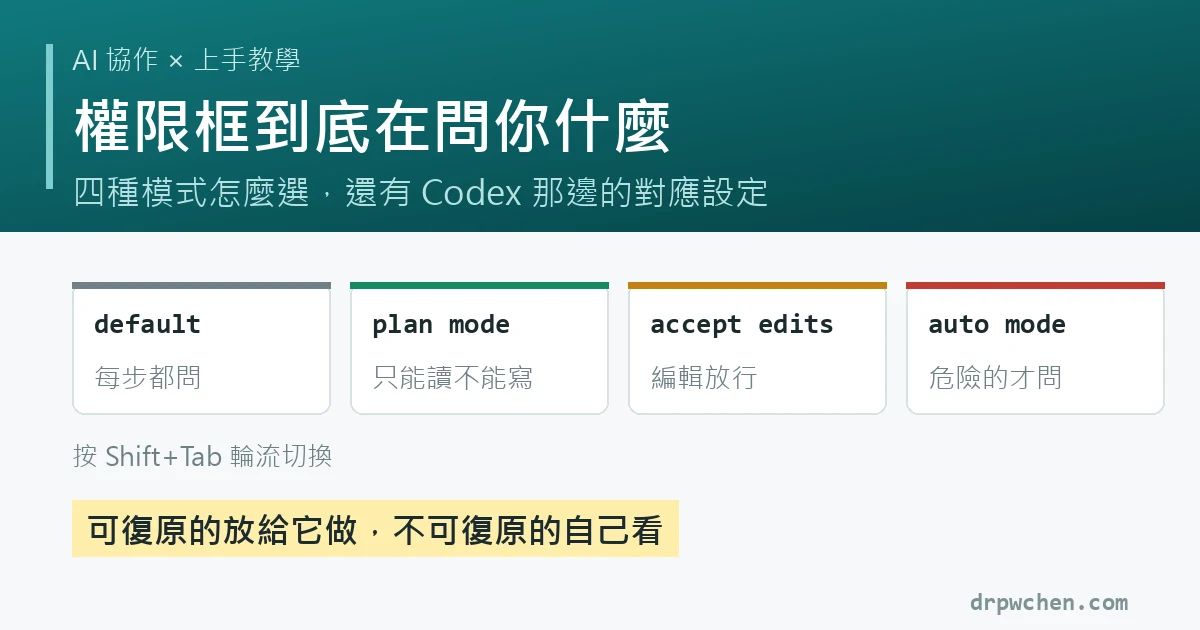
If it asks you at every step, you might click approve twenty times before it finishes one task. So Claude Code offers several modes. You can cycle through them by pressing Shift+Tab, and the screen will show you which mode you’re currently in. These four are the ones you’ll use day-to-day:
| Mode | What it does | When to use it |
|---|---|---|
| default | Asks you before every action that modifies something | The initial trust-building phase |
| plan mode | Read-only, no writing. It researches first, then gives you a plan | When you want to see what it intends to do first; the first step before touching important data |
| accept edits | Automatically approves file edits, but still asks for commands | Edit-heavy work like revising drafts or writing notes |
| auto mode | The system automatically judges if a command is dangerous: safe ones are approved directly, dangerous ones are intercepted to ask you | Daily driver |
(Claude Code actually has more modes, like bypass permissions for unattended environments, but those aren’t relevant for getting started. We can ignore them for now.)
Why auto mode is actually safer: alarm fatigue
People in clinical medicine are no strangers to alarm fatigue: the monitor beeps for everything, and after a while, we just reach out and silence it when we hear it. Permission prompts are the same. When every single prompt requires your approval, you quickly stop reading and start clicking approve reflexively. At that point, “asking every step” doesn’t give you safety; it just gives you the illusion of safety.
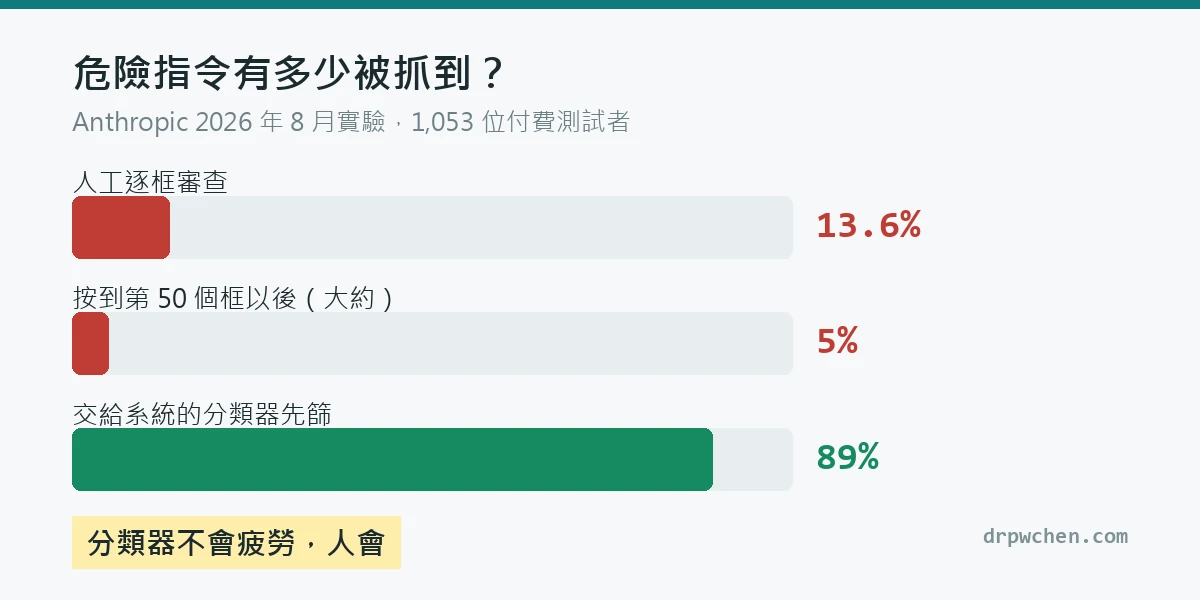
Anthropic published an experiment this August where they found 1,053 paid testers and secretly slipped obviously dangerous commands into their normal workflows to see how many people would notice:
- With manual per-prompt review, only 13.6% of people caught the dangerous commands
- After clicking the 50th prompt, the catch rate dropped to around 5%
- Handing it to the system’s classifier to filter first automatically intercepted 89% of dangerous commands, and it doesn’t get fatigued
This is also why, starting in mid-August 2026, the subscription version of Claude Code defaults to auto mode. If you just installed and opened it, you’re likely already in this mode.
The caveat, straight from the source
89% is not 100%; 11% still slips through. So Anthropic themselves say: classifiers cannot eliminate risk. Important changes (like things that affect production environments) are still recommended for manual review. Also, there are a few hard rules unaffected by the mode; for example, actions like deleting
.gitor.claudefolders will never be automatically approved.
My own approach is to stay in auto mode, but keep a red-flag list in my head. If these words appear, I take a look myself before clicking:
rm,del: deleting thingsgit push, deploy: publishing things- Any action that involves sending emails, posting, or transmitting data externally
The guiding principle in one sentence: let it handle the reversible things, look at the irreversible things yourself. There’s another half to this permissions thing, which is what keys you leave in places it can reach. I wrote about that in auditing the keys to the house.
How to configure Codex: the three gears of /permissions
After class, someone asked, “Does Codex not have an auto mode?” There’s a corresponding equivalent, it just has a different name and approach. Here’s what I verified on my own computer running codex-cli 0.147.0:
- Enter
/permissionsin the chat, and you’ll see three gears:- Read Only: Can only read; any changes must go through you
- Default: Edits and routine commands inside the working directory are done directly; it only pops out to ask you if it needs to touch things outside the folder or connect to the internet
- Full Access: Doesn’t ask anything. Beginners should just pretend this doesn’t exist
- The Default gear used to be called Auto in older documentation. It is the Codex version of “automatically pass the safe ones, ask about the dangerous ones”
The two companies have slightly different design philosophies, so I’ll clarify that while we’re at it: Claude Code evaluates line-by-line, using a classifier to assess if each command is dangerous; Codex draws a circle first, trapping it in your working directory using a sandbox (a technical fence). It only needs your nod if it wants to step outside the circle. Different routes, same destination. The only thing you need to remember is: both sides have this “automatically approve safe ones, intercept dangerous ones to ask” gear, and it’s the one beginners should use.
The order for getting started
- Week one: Use plan mode (Read Only for Codex), practice with your real folders, and just see what it “intends” to do without letting it actually do anything
- Once you understand permission prompts: Switch to auto mode (Default for Codex), and save your attention for red-flag commands
- When a red flag appears: Stop and read the plain-language explanation. If you’re unsure, ELI5 it, or paste it to a web-based AI to ask
With this setup, what you save isn’t just the hand clicking approve, but your attention. The energy saved from per-prompt reviews can be spent on the acceptance checks that actually matter: did it really organize the folder correctly? Is that citation in the notes really on that page of the book? I’ve written extensively on how to clearly assign tasks to it in how I talk to AI agents, which you can read next.
References
- Auto mode is now the default in Claude Code (Anthropic official announcement, source of the 1,053-person experiment)
- Claude Code Official Documentation: Permission modes
- OpenAI Codex Official Documentation: Agent approvals & security