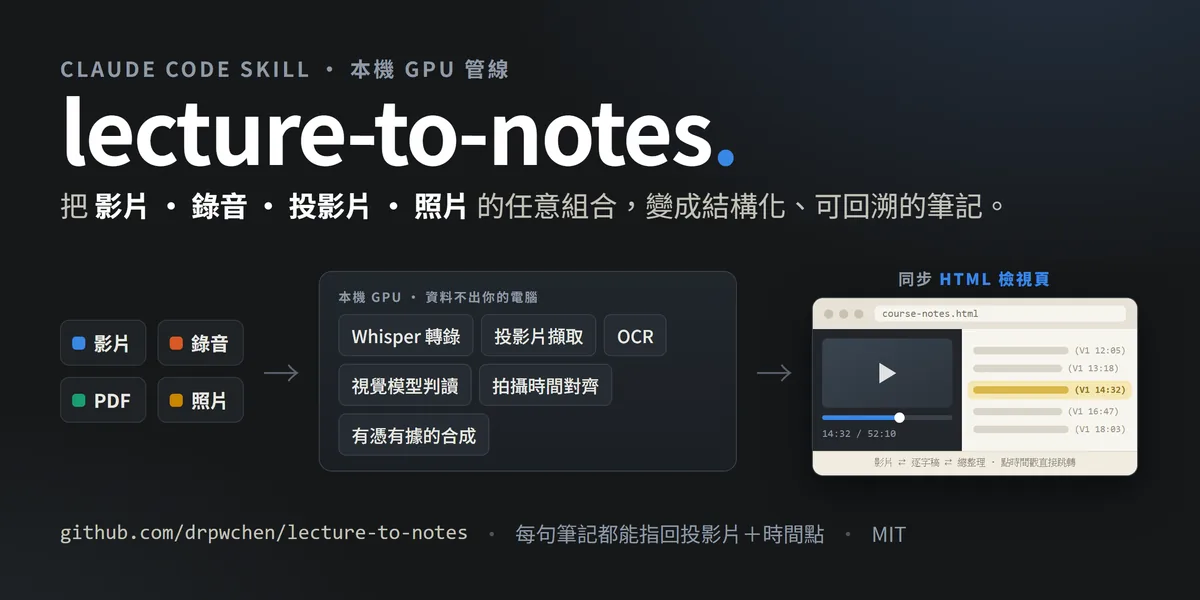
A while back on Facebook, I shared the results of using AI to organize lecture videos. I got an unexpectedly huge response, and people kept asking when I’d release the tool. I’ve spent some time cleaning it up, and today it’s officially open source: lecture-to-notes.
Key takeaways from this post
- Why everyone records lectures, but nobody goes back to finish watching them
- Notes don’t have to be shaped like “text + pictures”: video, transcript, and summary synced on one page
- Bring whatever you have: video, audio, slides, photos, all connected to the same timeline
- A few technical insistences: the transcript never automatically changes words, timing uses evidence instead of guessing
- Why OCR alone isn’t enough: how to tell if textless flowcharts and ultrasounds are important
- Fallback options for running without an NVIDIA GPU
The forest of tripods at the back of the classroom
I’ve always found physical medicine and rehabilitation (PM&R) lectures hard to take notes on. For classes like manual therapy and musculoskeletal ultrasound, the knowledge is hidden in the “movements.” You can’t capture it no matter how much text you write down. So the venue is always packed with tripods. Everyone’s recording, planning to review it later over a meal.
But in reality, you never go back and finish watching hours of video.
A turning point in my thinking: notes don’t have to be shaped like “text + pictures”
Once I had AI, my original thought process was to teach it to take precise screenshots, stuffing the video back into the traditional “text + pictures” note format. Later, I figured it out: notes don’t have to stick to that shape.
Just make a webpage, match the video with the transcript, and jump to whatever part you want to see. After all, what you really want to know is how that movement is actually done—and that only exists in the video.
So the final product is three layers stacked on the same page:
- Summary for reading: structured key notes, paired with the slides shown at the time
- Transcript for verification: every sentence has a timestamp
- Video is always one click away: as the video plays, the notes automatically highlight; click a timestamp in the notes, and the video jumps straight there
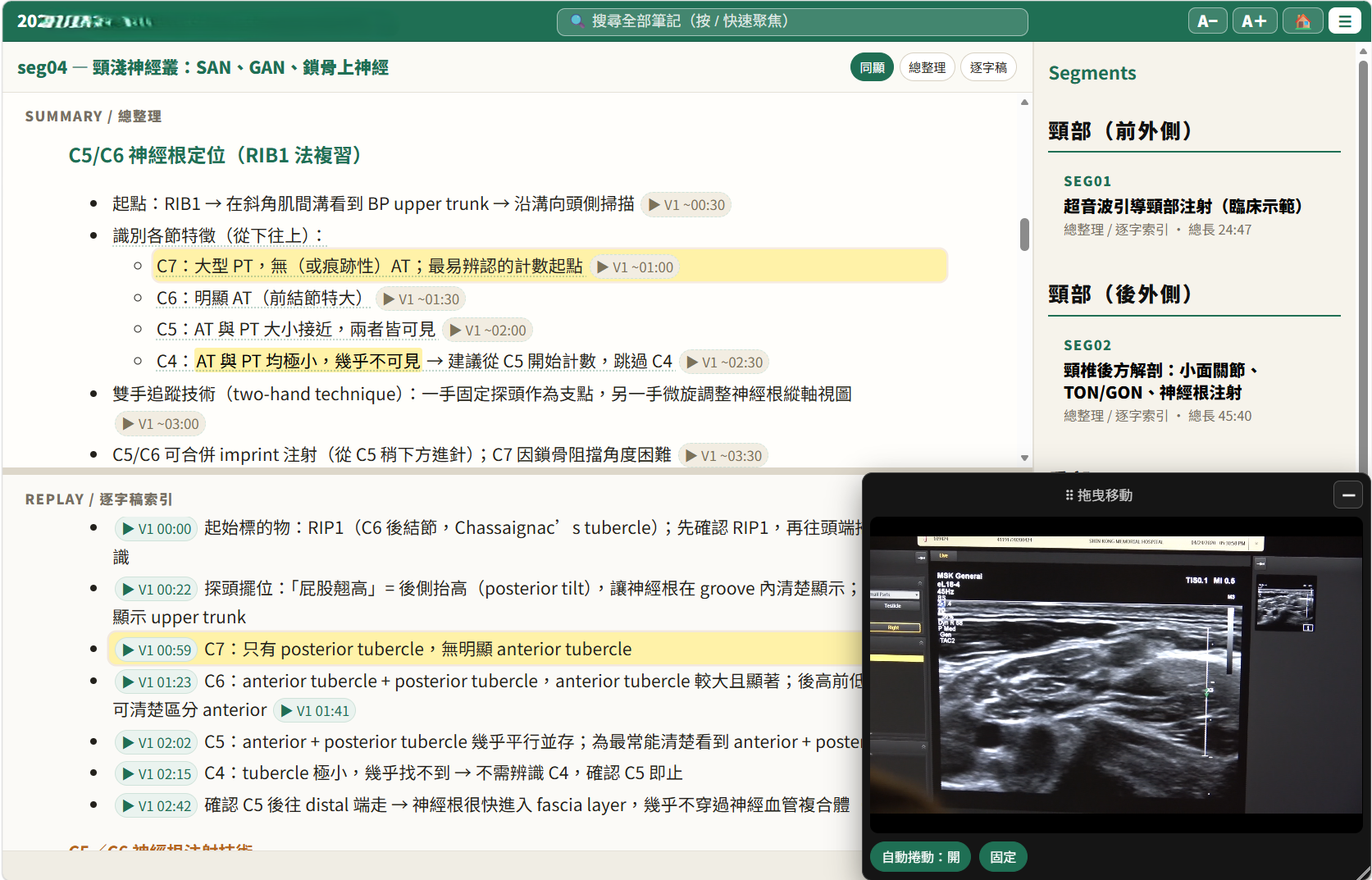
The same content also outputs as markdown into an Obsidian vault (so semantic search can find it later), and as a PDF for people who don’t use these tools. One lecture, three durable forms.
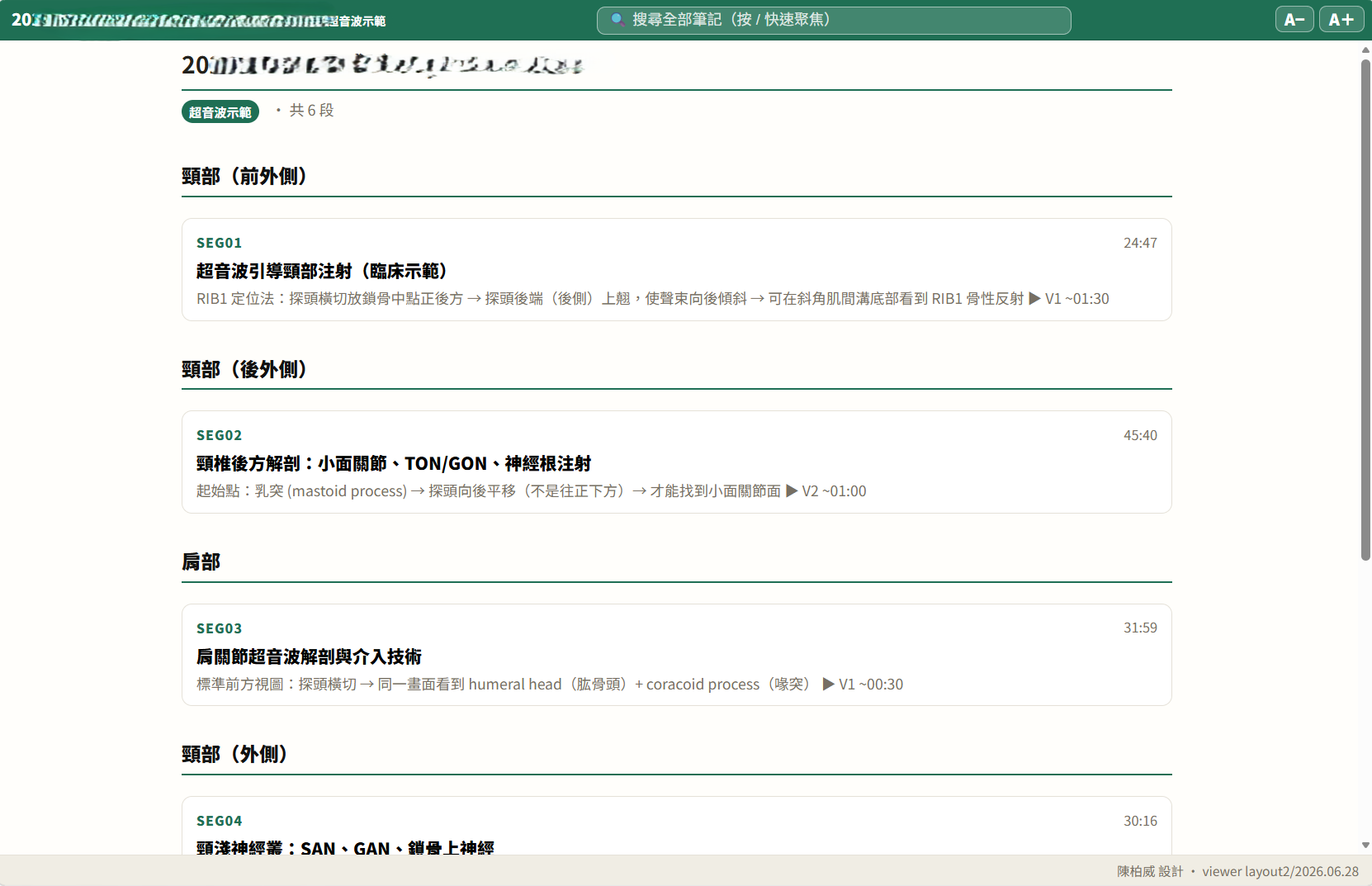
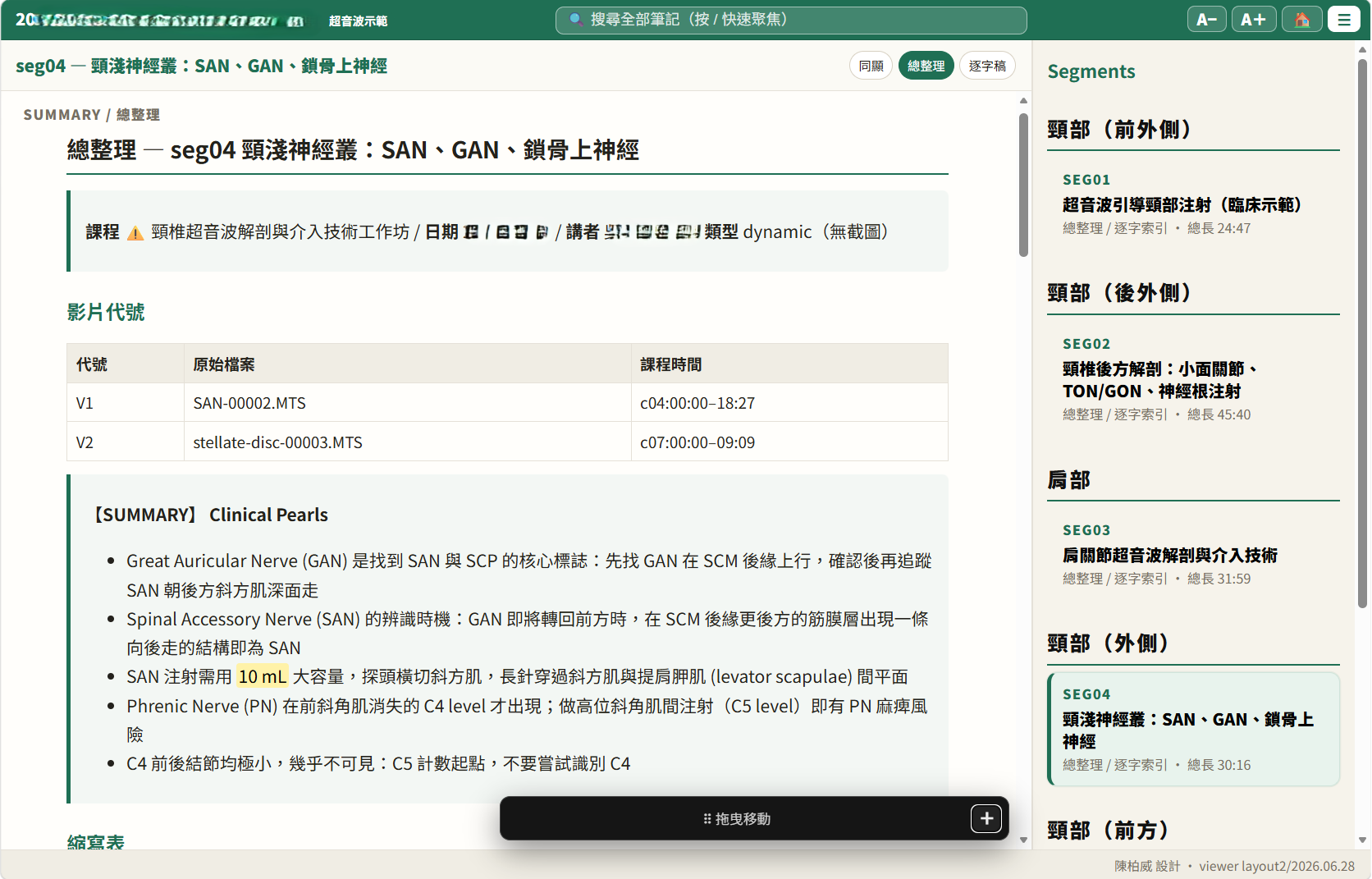
(The screenshots are actual outputs from a cervical spine ultrasound workshop. Dates and speakers are pixelated out.)
Bring whatever you have
A real lecture is never just one clean video recording: some topics are recorded on video, some only get audio, some only have slides snapped with a phone, and after the event the organizers might send out a PDF handout.
This tool takes in a folder as-is, automatically figures out what role each file plays, and then connects all sources to the same timeline—even if a specific slide never appeared on the video screen from start to finish, the moment the notes reference it, it still points back to the correct point in time.
A few technical insistences
The design goal of this tool isn’t to “summarize a video,” but rather traceability: every sentence in the notes must be able to point back to a specific timestamp in the transcript, and to the slide on the screen at that moment. A few design choices I insisted on for this:
All the expensive stuff runs locally
Whisper transcription, frame extraction, OCR, and slide semantic analysis all finish running on my own GPU, with zero API costs. The large language model is only responsible for “writing” at the final step, and it can only write based on the evidence already assembled from the previous stages. Even if you don’t run the final step, you’ve already gotten a transcript, a deduplicated set of slides, and the mapping between the two.
The transcript never automatically changes words
Automatically fixing typos sounds tempting. We actually built two versions, measured them, and then retired them all. Now suspicious words are only “flagged,” and the transcript itself doesn’t change a single byte. Each flag is a question, not a replacement—because if it replaces it wrong, you’ll never notice.
Timing: file time is a hypothesis, cross-referencing is evidence
A lecture is often recorded by more than one device: a main video, phone clips, photos. To piece them back into the same timeline, the most intuitive approach is to trust each file’s own recording time—but phone clocks drift, some files only have a modified time left, and a video that was paused will lie about its own start time.
So the pipeline separates two things: the recording time acts as a “claim,” and the cross-referencing of overlapping audio acts as “evidence.” If the difference between the two is more than 5 seconds, it flags a conflict and stops to ask a human, never automatically fixing it. This prevents the disaster of “44 minutes of misalignment, but every page of output looks completely normal.”
If a tool is missing, say it loud, don’t silently degrade
The chosen models have all been evaluated against my own data (the repo includes an A/B testing harness for the OCR engine). If an optional package isn’t installed, the feature is turned off and it clearly tells you what you’re missing—it absolutely never silently swaps in a worse method. Silent degradation produces “wrong output” rather than “less output,” which is the most expensive kind of bug.
What if there isn’t a single word on that slide?
After the post went out, a friend left a comment asking: “May I ask if you are summarizing the PPT on the screen into the database using OCR?” This question happened to hit exactly where I was stuck the longest, and it’s worth expanding on.
The answer is: yes, there’s OCR, but if there’s only OCR, this tool will miss the most valuable things in the lecture.
Turning a lecture into notes, the intuitive approach is to extract slide frames, run OCR, and attach the text next to the transcript. This works perfectly on bullet-point slides. The problem is that in PM&R lectures, the most important slides are often: a diagnostic flowchart, a staging table, an ultrasound image with two arrows.
What will the OCR results be for these slides? A few scattered labels, or just completely blank. In a purely text-based world, they look like blank slides.
That’s exactly what I did for my first version. This May, in one lecture there were 11 flowcharts, all judged as unimportant, and not a single one made it into the notes. In the transcript, the speaker is saying, “at this point we look at this pathway,” and there’s no pathway in the notes.
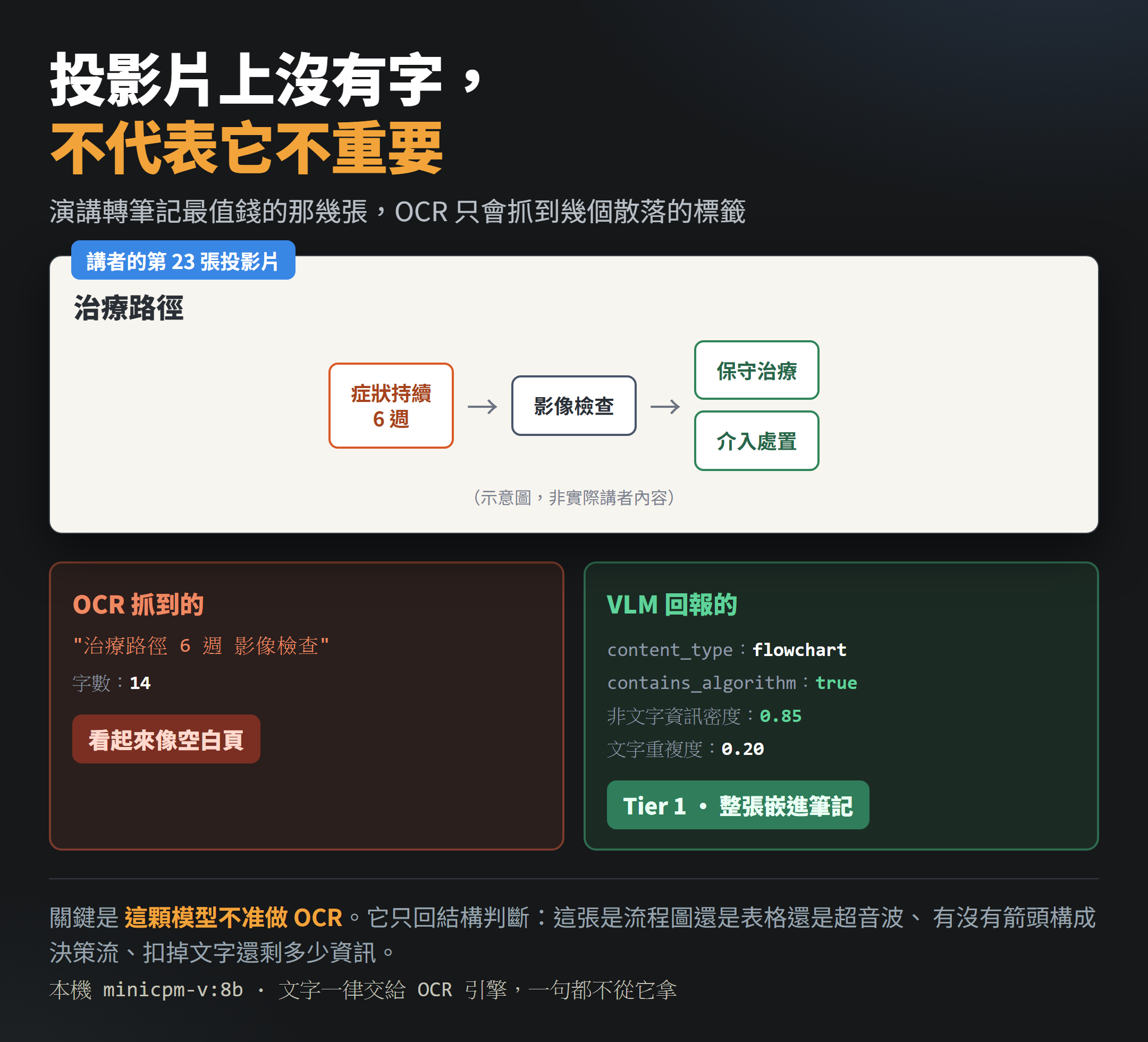
That extra model isn’t allowed to read words
Now there’s an extra step in the pipeline using a local vision-language model (minicpm-v:8b). There’s a restriction hardcoded into the rules here:
This model is not allowed to do OCR
What it returns isn’t text, it’s a structured judgment. Text is always handed over to the OCR engine, not a single sentence is taken from the vision model.
What it needs to answer is: is this a flowchart, a table, an X-ray, an ultrasound, or pure text; are there arrows forming a decision flow; are there measurement values; text repetition rate (how much of this image is just repeating the words next to it); non-text information density (how much information is left after subtracting the text).
Why not just let it read the text while it’s at it? Because when a vision model reads text, it makes things up. It’ll give you a paragraph that looks perfectly reasonable, but completely absent from the slide. In clinical content, this kind of error is much more expensive than “missing a paragraph.” The field in the code meant to hold VLM text is forever empty, kept only for compatibility.
Sieve with the cheap one first, then send to the expensive one
The vision model is very slow, sending them one by one is too wasteful. So there’s a four-condition gate in front, and all four must all be met to judge “this one is decorative” and skip it:
| Condition | Threshold |
|---|---|
| Text density | < 0.05 |
| Word count caught by OCR | < 20 |
| File size | < 80 KB |
| Image Laplacian variance | < 100 |
The key is the last two. A slide with only an ultrasound image and not a single word meets the first two, but its file is large and its visual structure is complex, so the last two aren’t met, the gate won’t close, and it gets sent in for analysis anyway. What actually gets skipped are section title cards, solid color divider pages, and blank pages that haven’t finished building.
Ultimately, what decides whether an image gets embedded isn’t how many words OCR caught
These signals pool into a score, which then determines the tier of each slide. A few rules were forced into existence by actual failures:
- Flowcharts are force-upgraded: Anything with an arrow decision flow, or that looks like a treatment pathway and staging framework, is forced up to the highest tier.
- Image types have a floor: Ultrasounds, X-rays, MRIs, anatomical diagrams, tables, and statistical charts aren’t allowed to drop down even if their score is below the threshold. This rule exists because once, an ultrasound image that the speaker only mentioned for one sentence had a score so low it dropped out, and the whole batch vanished.
- Pure bullet-point pages are forced not to embed: Bullet-point pages and mnemonic pages with a text repetition rate higher than 0.7 aren’t embedded, because the markdown is already written as bullet points, so pasting an image is just saying the same thing twice.
When failing, lean to the conservative side
If the vision model fails to analyze or returns an empty value, that slide is uniformly downgraded to the non-embedding tier. Better to have one less image than to embed an image when I don’t know what’s in it.
To sum up in one sentence: OCR is responsible for “the words that can be caught,” and the vision model is responsible for “whether the information that can’t be caught is there.” The two complement each other, and neither can replace the other.
If you have an AI agent subscription, you can ask it to do the heavy lifting
This repo is also a Claude Code skill: toss the entire folder into ~/.claude/skills/, and the AI agent can drive the whole pipeline itself. You provide the judgment (what language this class is in, which part is key), and it provides the mechanical labor. If you aren’t familiar with AI agents yet, you can start from my beginner series: Getting Started, How to talk to AI agents.
The tool itself can also be used purely via CLI, where each stage is a regular Python script.
Conclusion
GitHub: github.com/drpwchen/lecture-to-notes (MIT, both English and Chinese READMEs available)
Having an NVIDIA GPU is fastest (8 GB is enough, I use an RTX 3070 Ti myself), but it isn’t a hard requirement: there’s a built-in CPU fallback (which honestly prints out the estimated time), and transcription can also be outsourced to Groq’s cloud Whisper (free tier available, just don’t take this route for confidential recordings). Mac is theoretically doable in CPU mode but untested—if you hit any snags, feel free to open an issue, and you’re also welcome to share how you organize your own courses~