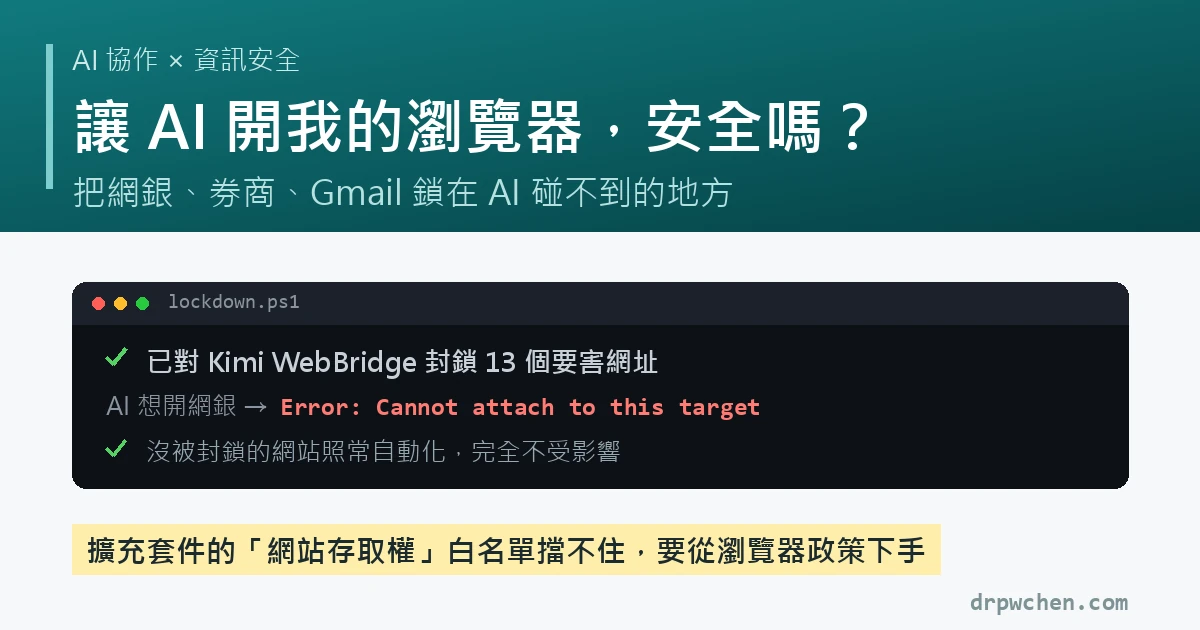
A few days ago, a junior colleague who just started coding with AI asked me a great question: she lets AI directly drive her browser to do things, but her passwords are all saved in the browser. Is this actually safe?
I think this question is worth breaking down into two layers, because people often mix them up when worrying about them. After looking into it seriously, I turned the answer into an open-source tool, which I’ll introduce at the end of the post.
Layer one: where passwords are stored
This layer is actually easy to solve. Whether you use Apple Keychain or Bitwarden, as long as it’s a dedicated password manager, and you have two-factor authentication (2FA) enabled for important accounts, the passwords themselves are safe. Don’t write passwords in Notepad, don’t use the same one for everything, and you clear this layer.
As an aside, if you save passwords in Chrome and sync them via your Google account, be careful: as long as someone can log into your computer account, they can see all the passwords you’ve saved. This is actually quite dangerous. My junior colleague uses Keychain, so she’s fine on this layer.
Layer two is the real issue: you let AI “control” your browser
This means it is operating using your logged-in identity. Your online banking, your email, your brokerage—to it, these are all open doors.
The suite I use is Kimi WebBridge. The tool itself is usually clean. I actually checked its control end: the daemon is only bound to localhost 127.0.0.1, so other machines on the LAN or the external network can’t connect to it; it doesn’t have any outbound connections, so it won’t send data out; and if a webpage with a malicious origin tries to secretly call it from within the browser, it gets blocked. We can rest easy on this part.
The real risk is something else entirely, called prompt injection: with your logged-in identity in hand, if the AI happens to read a webpage hiding bad instructions, it might be led by the nose. It isn’t being hacked; it’s being too obedient. And it holds all your currently logged-in websites in its hands.
To be fair, this kind of AI (like Claude) is inherently quite alert to prompt injection. Recently, it’s even become somewhat paranoid, easily suspecting it’s being given instructions. But rather than betting the safety of critical accounts entirely on it making the right call every time, it’s better to add a mechanical lock: block the most critical sites (online banking, brokerage, Gmail) completely out of the AI’s reach, so even if it gets tricked, it can’t walk in. My other everyday sites can still have it doing work for me as usual.
The intuitive approach doesn’t work: site access whitelists
In the browser’s extension settings, there is a “Site access” option that can restrict an extension to “only run on specific sites.” Intuitively, setting this up means you’re safe.
The test result: it can’t stop it. After setting up the whitelist, if you tell the AI to open a site off the list, it gets in anyway, reads the content, and runs JavaScript just fine.
The reason lies at the technical level: these AI browser control tools drive the page via the browser’s debugging interface (the chrome.debugger API). The “Site access” setting layer only manages general content injection; it has no jurisdiction over the debugging interface. So that settings page makes you think there’s a fence, when in reality, these tools simply don’t use that door at all.
As a side note, not every tool is like this. Claude in Chrome, for instance, is designed to ask for your consent site by site. But as long as an extension has debugger in its permissions list (which full-site authorization tools like WebBridge do), the per-site whitelist is just an ornament.
The lock that actually works: the browser policy layer
Digging one layer deeper, the answer is in the browser policies commonly used in enterprise environments: runtime_blocked_hosts within ExtensionSettings can block specific websites for specified extensions.
This one really holds. I put in my own online banking, brokerage, and Gmail—a total of 13 login URLs—to test it: the moment the AI touches a blocked site, it immediately eats a Cannot attach to this target and can’t even read the page. Unblocked sites are completely unaffected, and my everyday automations run as usual. You have to test both directions for the lock to count.
Two implementation details:
- Block only the exact URL, don’t use wildcards like
*.entire_domain. Blocking*.esunbank.com.twwill block the credit card campaign pages along with it, and credit card campaigns or online forms are often exactly where you want to leave the AI to help. What you want to block is “the URL where money can be moved after logging in,” not the whole bank. - macOS has a trap: policies written in via
defaults writeare useless, and they fail silently. I tested it; it will show up as “OK” inchrome://policy, but the level is just “Recommended,” and the AI gets in anyway. The policy must be placed under/Library/Managed Preferencesand the level must show as “Mandatory” to actually block it. The standard for verification is checking the level, not just whether the policy appeared.
Built into an open-source tool: kimi-webbridge-lockdown
This setup requires manually editing the registry (Windows) or system policy files (macOS), which is a bit of a barrier. So I built it into a one-click setup tool and open-sourced it:
github.com/drpwchen/kimi-webbridge-lockdown
What it does:
- Automatically detects which extensions in your browser have the
debuggerpermission (the ones capable of full-site operation). - Has a built-in field-verified directory of Taiwan online banking / brokerage login URLs (each one was copied from the address bar by actually opening the login page), and you can also paste in your own URLs to add.
- Automatically backs up before writing, and reads back to verify after writing. It supports Edge and Chrome, Windows and macOS.
- If you later want to remove a specific site, there is unblock; if you want to revert completely, there is restore.
I also included a copy of AGENTS.md: people who use this kind of tool already have an AI agent on hand anyway, so I might as well let it guide you through the whole process. Just tell your AI:
Read the AGENTS.md in this repo and walk me through locking down my critical sites.
It will interview you about which banks you want to protect (the rule is hardcoded: URLs can only come from your address bar or the verified directory; it’s not allowed to guess using its own memory), confirm which subdomains to leave open for automation, and after running the setup—it will try to open your online banking itself, and only if it fails to get in is the verification considered passed. Having the AI personally prove it’s locked out is, I think, the most convincing step of the whole tool.
This lock isn’t a silver bullet
Being honest and clear about its boundaries:
- The blacklist only blocks what you list. If you open a new bank account, remember to come back and add a line.
- It protects against an AI agent wandering around with your logged-in identity; it does not protect against malware, nor does it protect against anyone with admin privileges on your computer.
- A more thorough approach is to run automations in an isolated browser profile that never logs into important accounts. There’s no enumeration problem there; it’s just more hassle to set up.
- Finally, the habit of “not letting AI read untrusted sites while your important logins are hanging open” is something you still have to maintain yourself. This lock just shuts the most expensive doors first.
To put this into a more complete context: after giving an AI assistant the ability to read files, execute code, and connect to the internet, the browser isn’t the only thing you should look back and audit. I previously wrote a post, When AI Can Do Anything, I Look Back and Double-Check the Keys to My House, which talked about re-locking and revoking scattered keys and tokens, and organizing them into a few security habits to have when using AI—this browser lock is an extension of that audit.
Back to the junior colleague’s question: for the password layer, using a password manager plus 2FA clears it. For the AI-driving-the-browser layer, there is now a tool to lock online banking out of its reach. Take it and use it if you need it, and feel free to share or correct me!